Install SkyFrame on Windows, mobile, and tablet
A full, visual guide for installing SkyFrame as a fast, app-like experience, plus a complete walkthrough of everyday use.
Why install?
Launch SkyFrame with one tap, keep it pinned, and enjoy a focused experience that feels like a native app.
Works on modern browsers: Chrome, Edge, Safari, and Firefox (limited install support).
What is it?
SkyFrame is a simple, fast place for amateur astrophotographers to share their images, add serious metadata, and keep ownership protection baked in from the start. SkyFrame can secure your amateur images with an invisible signature tied to your account and the exact upload time, so you can share confidently without slapping ugly watermarks on the frame.
Install SkyFrame
Choose your device and follow the steps below.
- Open SkyFrame in Chrome or Edge.
- Click the install icon in the address bar.
- Confirm by pressing Install.
- Pin to taskbar for quick access.
- Open SkyFrame in Chrome.
- Tap the menu (three dots).
- Select Add to Home screen.
- Tap Install to confirm.
- Open SkyFrame in Safari.
- Tap Share (square with arrow).
- Select Add to Home Screen.
- Tap Add to install.
Tablet mode tips
- Use landscape for a wider feed view and metadata panel.
- Pin SkyFrame to your dock for faster launches.
- Enable desktop mode only if your device blocks install prompts.
How to use SkyFrame
From signing in to sharing your best frames.
Register with an email, username, and password. Your profile will store observatory details and a custom avatar.
Sign in to access your personalized feed, uploads, and saved frames.
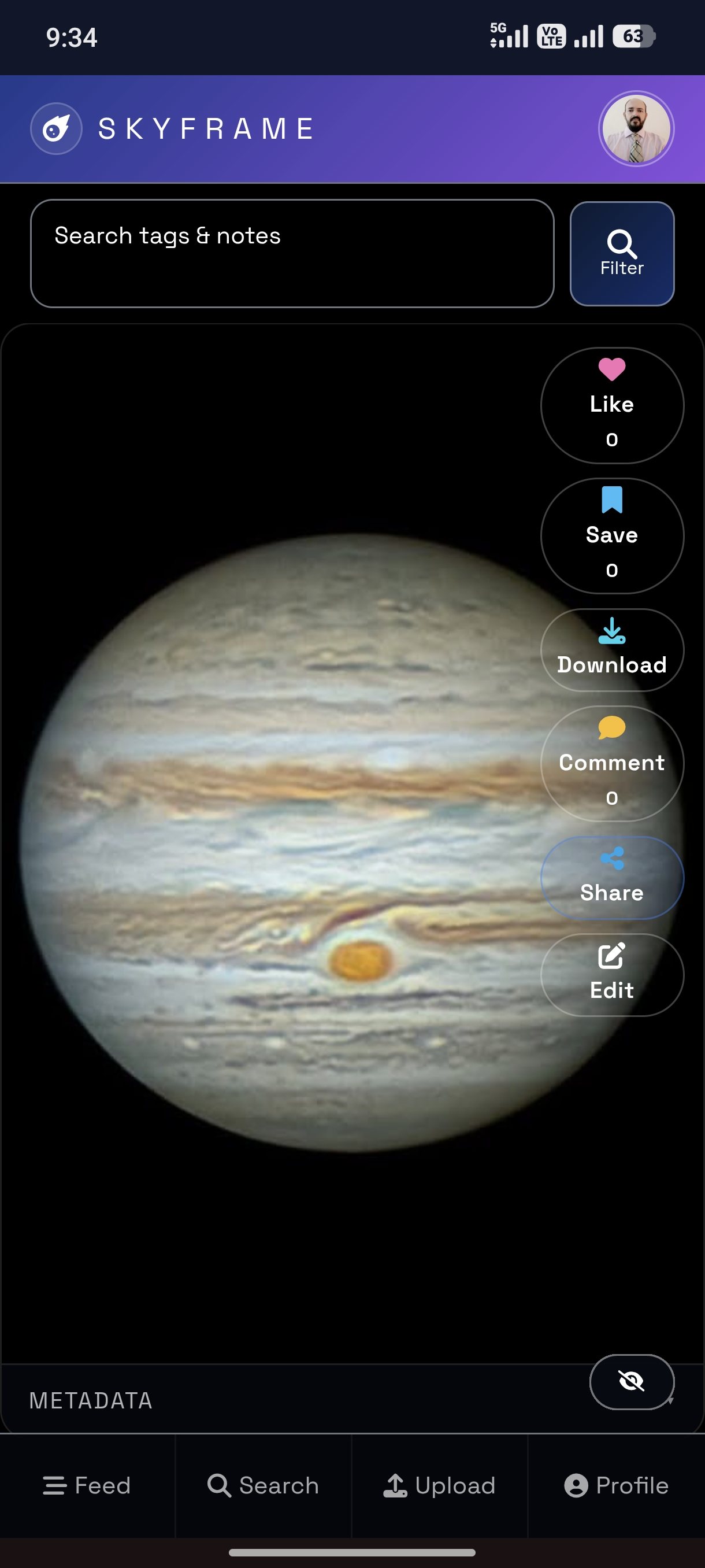
Scroll the feed to view astronomy frames with full metadata and quick actions.
Filter by category, object, observer, and date range. Use tags in notes for quick lookup.
Upload a processed image and fill in metadata. SkyFrame applies an invisible watermark to protect your work.
- Category, object, observer
- Location, filter, telescope, camera
- Seeing, transparency, exposure details
Edit metadata anytime. Save favorite frames and keep a personal archive.
- Like, save, comment, and share
- Download your images with labels
- Export archives from your profile
Image signing and protection
Secure amateur images with an invisible signature tied to your account and upload time.
How SkyFrame signs images
Every upload receives a unique watermark hash plus a SHA-256 signature of the final file. The watermark stays invisible while the SHA-256 hash lets you verify the file has not been tampered with.
- Protects amateur work from uncredited reuse.
- Supports scientific-use permissions you choose.
- Share safely with public or private links.
- Keep originals offline if you plan to publish elsewhere.
- Use clear notes and tags for attribution.
- Enable scientific-use only when ready to share openly.
Paste a shared SkyFrame link, an image ID, or upload a file to check the SHA-256 signature. File uploads also run perceptual checks (pHash + dHash) to catch re-encodes or minor edits.
Quick help
Make sure you are using HTTPS and a supported browser. On Android, open the menu and choose Add to Home screen. On Windows, look for the install icon in the address bar.
SkyFrame uses a service worker to keep the app fast and resilient. Some pages can load with limited connectivity after first use.